All Breeds Cattlemen's Association (ABCA) Platform Manual
Welcome to the ABCA Cattle Management Platform
This comprehensive guide will help you make the most of your cattle management system. Our platform combines intelligent cattle tracking, AI-powered analysis, and cloud-based management to enhance productivity in your livestock operations.
The ABCA Platform is built on the philosophy of "Fertility. Function. Honesty." - promoting transparency and data-driven evaluation in the livestock industry.
Multi-Domain Access
The platform is accessible through three domains, all sharing the same database and features:
- bossires.online - Full-featured management platform
- cattleregistry.online - Public registry and marketplace
- abca.online - ABCA-specific filtered registry
📸 About the Screenshots: This manual includes real screenshots from Kallion Farms, one of our active ranch operations. All screenshots show actual working features and data to give you a clear understanding of how the system works in practice.
Table of Contents
- Getting Started
- Dashboard Overview
- Cattle Management
- Ranch Management
- Pasture Management
- ABCA Fertility Tracking
- ABCA Registry & Certificates
- Cattle Judging System
- Registration & Fees
- Marketplace
- Image & Video Management
- Document Management
- Measurements & Analysis
- Veterinary Exam Tracking
- Export Compliance Management
- Ask Theo (AI Assistant)
- Voice Commands
- Shopping Cart & Checkout
- Ownership & Transfers
- Cattle Import (Excel/TSV)
- Mobile App (iOS)
- Tips & Best Practices
Getting Started
Creating Your Account
- Visit cattlemanagement.online
- Click "Sign Up" in the top right corner
- Enter your email address and create a secure password
- Verify your email address
- Complete your profile with ranch information
Logging In
- Navigate to the login page
- Enter your username or email
- Enter your password
- Click "Login"
Tip: The system remembers your preferences, including your preferred measurement system (imperial/metric) and language.
First-Time Setup
After logging in for the first time:
- Set Up Your Ranch - Add your ranch details, location, and operation type
- Configure Preferences - Choose your measurement system and language
- Add Your First Cattle - Start building your herd database
- Upload Images - Add photos of your cattle for AI analysis
Dashboard Overview
Your dashboard provides a quick overview of your operation:
- Total Ranches - Number of ranches you manage
- Total Cattle - Complete herd count
- Recent Activity - Latest cattle additions and updates
- Quick Actions - Fast access to common tasks
Figure 1: Main dashboard showing system statistics and navigation menu
Navigation Menu
- Cattle - Manage your herd
- Ranches - Ranch information and settings
- Images - Photo gallery and management
- Measurements - Weight and body condition tracking
- Marketplace - Buy and sell cattle
- Upload Queue - Batch image processing
- Voice Commands - Voice-controlled operations
- Admin (for admin users) - System administration
Cattle Management
Viewing Your Cattle
Navigate to Cattle to see your herd. You have three view options:
1. Row View
- Shows cattle in a list format with images
- Displays key information: name, PHN, registration number, breed, sex
- Includes selection checkboxes for bulk actions
Figure 2: Cattle list in Row View showing images, key information, and selection checkboxes for Kallion Farms cattle
2. Card View
- Grid layout with cattle cards
- Visual presentation with images
- Quick access to details
3. Analysis View (Data Table)
- Comprehensive table with all data columns
- Customizable column visibility
- Sortable by any field
- Perfect for data analysis and comparison
- Includes selection checkboxes for bulk registration
Figure 3: Cattle list in Analysis View showing comprehensive data table with column visibility controls and checkboxes
Filtering & Searching
- Search Bar - Find cattle by name, registration number, ear tag, or PHN
- Ranch Filter - View cattle from specific ranches
- Records Per Page - Choose 20, 50, 75, or 100 cattle per page
- Sort Options - Click column headers to sort by any field
Adding New Cattle
- Click "Add Cattle" button
- Fill in the required information:
- Name - Cattle's name or identifier
- PHN (Permanent Herd Number) - Unique identifier
- Registration Number - Official registration (if applicable)
- Ear Tag Number - Physical tag number
- Breed - Cattle breed
- Sex - Bull, Cow, Heifer, Steer, etc.
- Date of Birth - For age calculation
- Ranch - Select owning ranch
- Optional information:
- Dam (mother) and Sire (father) for lineage tracking
- Location within ranch
- Color and markings
- Health status
- Body condition score
- Click "Save" to add the cattle
Editing Cattle Information
- Navigate to the cattle's detail page
- Click "Edit" button
- Update the information
- Click "Save Changes"
Cattle Details Page
Each cattle has a comprehensive details page showing:
- Basic Information - Name, breed, sex, date of birth
- Identification - PHN, registration number, ear tag
- Lineage - Dam and sire information
- Images - All photos associated with the cattle
- Measurements - Weight history, body scores
- 3D Models - Interactive 3D visualizations
- AI Analysis - Body composition and recommendations
- Breeding History - Offspring records
Figure 4: Individual cattle detail page showing comprehensive information, images, and action buttons
Bulk Selection & Actions
In Row or Analysis view:
- Check boxes next to cattle you want to work with
- Bulk Action Bar appears showing selected count
- Available bulk actions:
- Register Selected Cattle - Batch registration
- More actions coming soon
Figure 5: Bulk selection in action - checkboxes selected and bulk action bar displayed at bottom of screen
Ranch Management
Viewing Ranch Details
- Go to Ranches menu
- Click on a ranch name to view details
Ranch details include:
- Basic information (name, producer, registration number)
- Location (address, city, state, country)
- Ranch statistics (total acres, cattle count)
- Operation type and certification details
- Associated documents
Ranch Action Buttons
From the Ranch detail page, you can:
- Register Action (Yellow button) - Jump directly to cattle registration in Analysis view
- Upload Documents - Add ranch documents
- Import Observations - CSV import for pasture notes
- Bulk Upload Images - Upload multiple photos at once
- Manage Pastures - Define and manage grazing areas
- Edit - Update ranch information
Figure 6: Kallion Farms ranch detail page showing all action buttons and ranch information including cattle count and documents
Adding a New Ranch
- Navigate to Ranches
- Click "Add Ranch"
- Enter ranch details:
- Name and producer information
- Contact details (email, phone)
- Address and location
- Total acreage
- Primary breed
- Operation type
- Click "Save"
Pasture Management
Interactive Pasture Maps
The pasture management system uses interactive maps powered by Leaflet.js:
- View Pastures - From Ranch detail page, click "Manage Pastures"
- Map Interface - See all your pastures on an interactive map
- Draw New Pastures - Use drawing tools to define boundaries
- Edit Boundaries - Modify existing pasture shapes
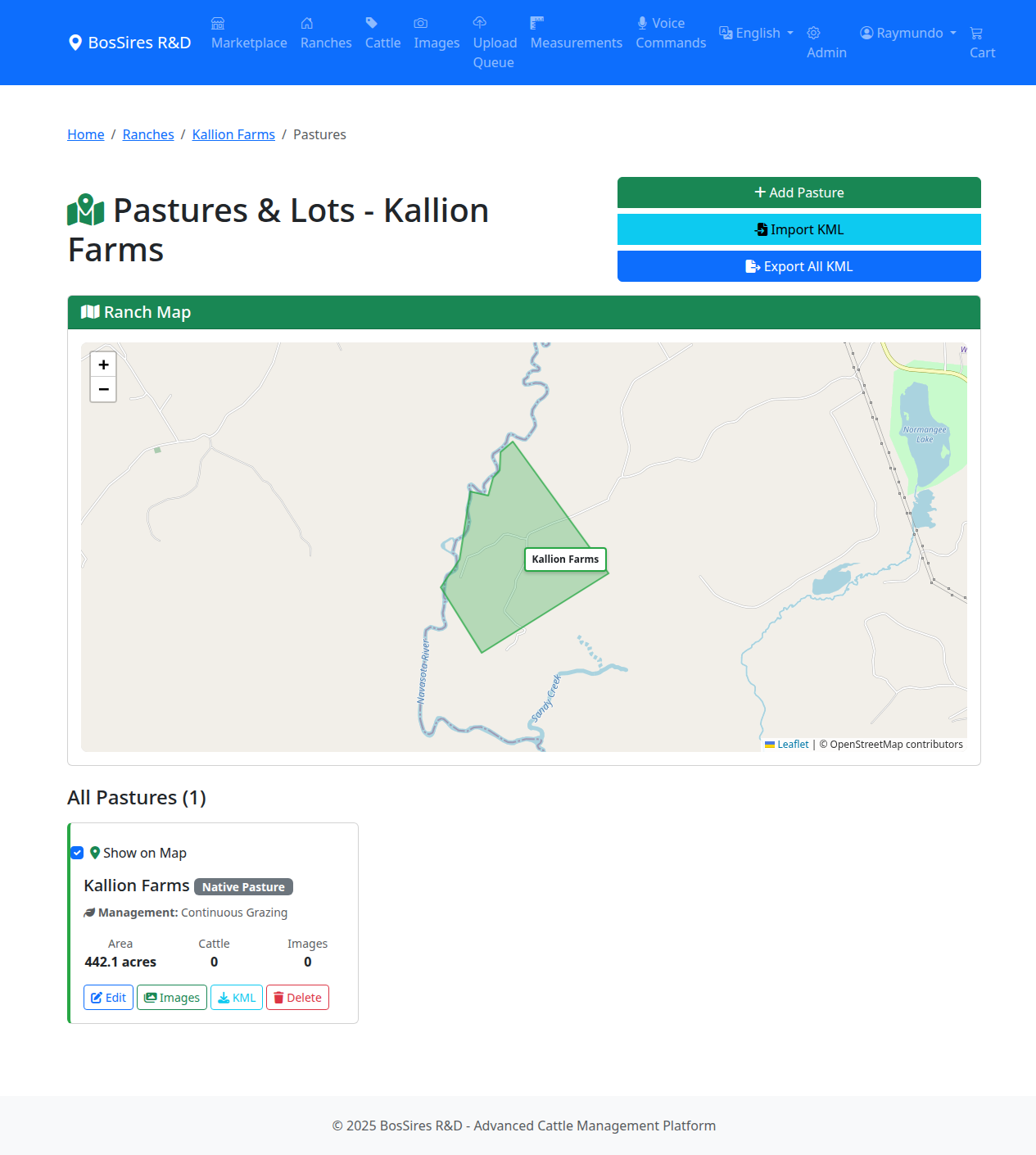
Figure 10: Interactive pasture management interface with Leaflet.js map showing pasture boundaries and management tools
Creating a New Pasture
- Go to a ranch's pasture management page
- Click "Create New Pasture"
- Enter pasture information:
- Name - Pasture identifier
- Grazing Type - Select from:
- Continuous
- Rotational
- Intensive Rotational
- Ultra High Density
- Mob Grazing
- Strip Grazing
- Holistic Planned Grazing
- And more...
- Acreage - Size (calculated automatically from boundaries)
- Draw Boundaries on the map:
- Click points to create polygon
- Double-click to finish
- Click "Save"
GPS-Based Image Association
When you upload images with GPS data:
- Images are automatically linked to pastures
- The system uses GPS coordinates to determine location
- View pasture-specific images in the pasture gallery
Importing/Exporting Pasture Data
- KML Export - Download pasture boundaries for use in other mapping tools
- KML Import - Import existing pasture data
- CSV Observations - Import field notes and observations
Pasture Observations
Track what you see in the field:
- Navigate to a pasture's detail page
- View the Observations tab
- Import observations via CSV with:
- Observation type (weeds, pests, water issues, forage quality)
- Severity level
- GPS coordinates
- Notes and photos
- Track resolution status
ABCA Fertility Tracking
The ABCA emphasizes real performance data over predictions. The fertility tracking system helps you document and verify actual breeding performance.
Core ABCA Standards
The ABCA operates under "Fertility. Function. Honesty." principles:
- Natural Fertility - Track actual conception rates and calving success
- One-Strike Fertility Policy - Animals that fail to breed are documented
- Structural Integrity - Track udder and structural assessments
- Openness for Inspection - Transparent data for all registered cattle
Recording Fertility Data
From the cattle detail page, you can track:
- Conception Date - When breeding occurred
- Last Calving Date - Date of most recent calving
- Calving Interval - Days between calvings (365 is ideal)
- Calving Ease Score - 1 (no assistance) to 5 (extreme difficulty)
- Calf Survival - Document calf survival rate
- Breeding Notes - Performance notes and conception rates
Fertility Tiers
The system automatically calculates fertility tiers based on calving interval:
- Excellence - Calving interval of 365 days or less
- Good - Calving interval of 366-395 days
- Needs Improvement - Calving interval over 395 days
Verified Fertility Badge
The Verified Fertility Badge is awarded to cattle with:
- Visual proof of cow/calf pair photo taken within 1 week of calving
- Documented calving date and successful calf raising
- Complete fertility history in the system
This badge provides buyers confidence in proven breeding performance.
First Calving & Lifetime Records
Track lifetime fertility performance:
- First Calving Date - Important for evaluating heifer development
- Fastest Calving Interval - Best performance achieved
- Average Calving Interval - Lifetime breeding consistency
ABCA Registry and Certificates
ABCA Public Registry
The public registry at abca.online allows anyone to:
- Search for ABCA-registered cattle
- View performance metrics and pedigrees
- See endorsement badge statistics
- Browse ranch spotlights
- Access data quality indicators
Performance Dashboard
The ABCA Performance Dashboard displays:
- Registry Statistics - Total registered animals, active ranches
- Performance Metrics - Average calving intervals, fertility rates
- Endorsement Badges - Distribution of verified credentials
- Data Quality Scores - Completeness of records
- Ranch Spotlights - Featured operations with exemplary data
Generating Registry Certificates
Official ABCA Registry Certificates can be generated for registered cattle:
- Navigate to the cattle detail page
- Click "Generate Certificate"
- The PDF certificate includes:
- Official ABCA registry number
- Complete pedigree (dam and sire lines)
- Owner and location information
- Registration date and verification details
- Endorsement badges earned
- Download or print the official certificate
Zietsman Approved Badge
Cattle may earn the Zietsman Approved designation, indicating:
- High-fertility breeding
- Low-input management compatibility
- Selection for efficiency and adaptability
Cattle Judging System
The comprehensive judging system allows authorized evaluators to assess cattle using standardized criteria.
Judging Dashboard
Access the judging dashboard to:
- View cattle available for judging
- Filter by judging event
- Search by name, registration number, or PHN
- See your recent judging history
Judging Events
Judging events organize evaluations:
- Event Name - Title and description
- Event Date - When evaluations occur
- Ranch Association - Ranch hosting the event
- Active Status - Whether event is currently accepting judgings
Conducting a Judging
- Select a cattle from the judging dashboard
- The judging interface displays:
- Cattle photos from all angles
- Basic information (name, breed, lineage)
- Any previous judging records
- Enter your evaluation:
- Body Condition Score - Using standard 1-9 scale
- Structural Assessment - Legs, feet, topline, etc.
- Conformation Notes - Detailed observations
- Overall Rating - Summary score
- Use Voice Transcription - Speak your notes hands-free
- Submit or save as draft
Endorsement Badges
Judges can award endorsement badges for:
- Fertility Excellence - Proven breeding performance
- Structural Soundness - Excellent conformation
- Maternal Ability - Demonstrated calf raising success
- Growth Performance - Above-average weight gain
Viewing Your Judgings
Access My Judgings to:
- Review your past evaluations
- Edit draft judgings before submission
- Track animals you've evaluated
- Export judging records
Registration and Fees
Registering Cattle
The platform offers a streamlined cattle registration system:
Method 1: From Cattle List
- Go to Cattle page
- Switch to Row View or Analysis View
- Check boxes next to cattle to register
- Click "Register Selected Cattle"
- Select the ranch for registration
- Review the registration summary:
- Number of cattle to register
- Registration fee ($10 per animal)
- Total cost
- Click "Register Cattle"
Method 2: From Ranch Page (Quick Access)
- Go to Ranches
- Open a ranch detail page
- Click the yellow "Register Action" button
- You'll jump to the Analysis view with cattle from that ranch
- Select cattle and follow steps above
Figure 7: Clicking "Register Action" from ranch page navigates to filtered cattle list in Analysis view
Registration Numbers
- Format: REG-YYYY-NNNN (e.g., REG-2025-0001)
- Sequential numbering by year
- Unique and permanent
- Automatically generated
Registration Fees
- $10.00 per animal
- Automatically added to your shopping cart
- Pay via secure checkout
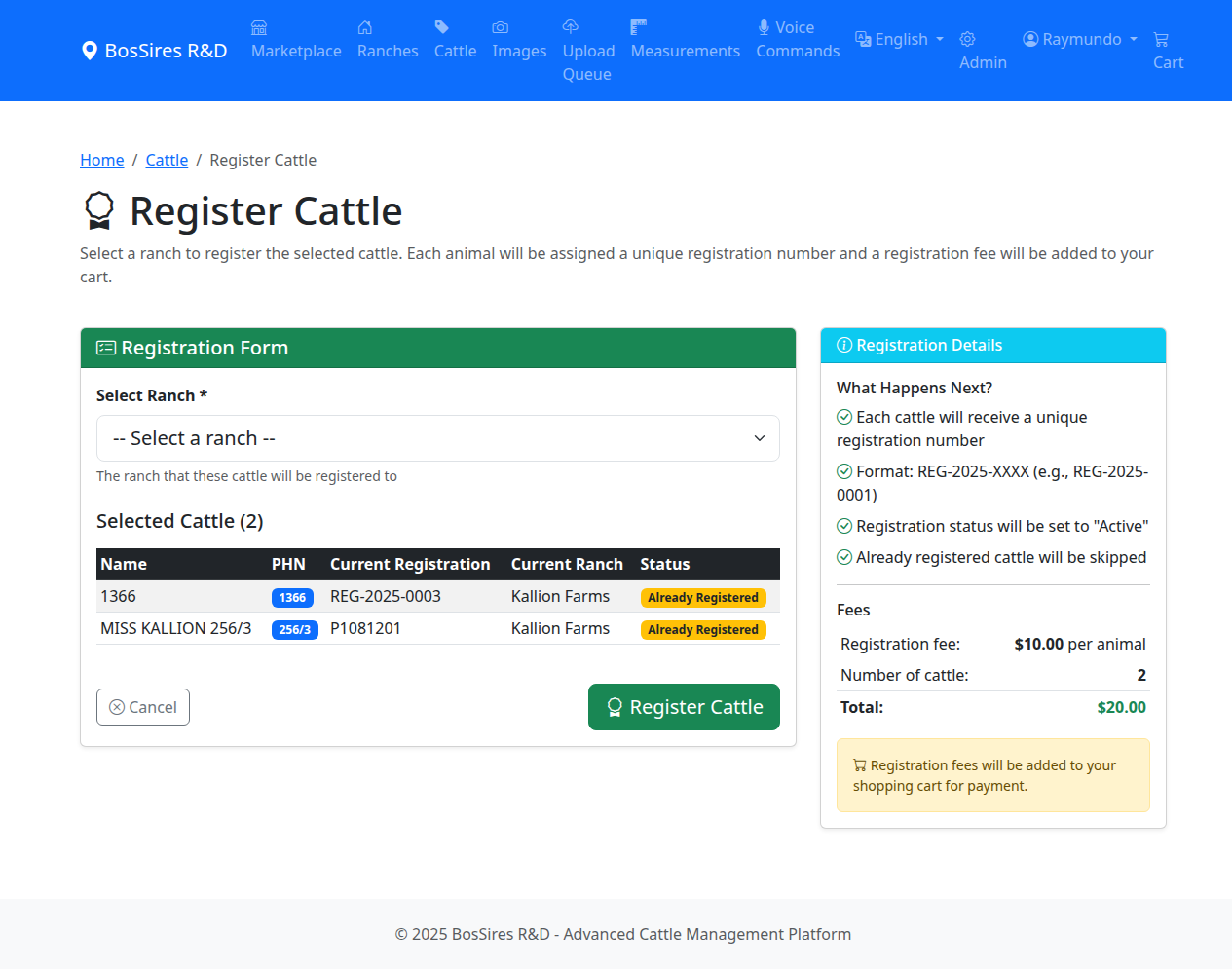
Figure 8: Cattle registration form showing selected cattle, ranch selection, and registration fee summary ($10 per animal)
Checking Registration Status
View registration status on:
- Cattle list pages (registration number column)
- Cattle detail pages
- Analysis view data table
Marketplace
Browsing Cattle for Sale
- Navigate to Marketplace menu
- Browse available listings
- Use filters:
- Product Type - Live cattle, semen straws, embryos
- Breed - Filter by specific breeds
- Sex - Bull, cow, heifer, etc.
- Search - Find by name or keywords
Figure 9: Public marketplace showing cattle available for sale with filters and search options
Listing Cattle for Sale
- Go to cattle detail page
- Click "Edit"
- Enable "Available for Sale"
- Set Visibility to "Marketplace" or "Public"
- Set your asking price
- Add product details and photos
- Save changes
Your cattle will appear in the marketplace for potential buyers.
Adding to Cart
- Browse marketplace listings
- Click on cattle you're interested in
- Click "Add to Cart"
- Continue shopping or proceed to checkout
Image and Video Management
Uploading Individual Images
- Navigate to cattle detail page
- Click "Upload Image"
- Select image file (JPG, PNG, HEIC, HEIF)
- Add description (optional)
- Click "Upload"
Bulk Image Upload
For uploading many images at once:
- From Ranch detail page, click "Bulk Upload Images"
- Drag and drop files or click to browse
- Supported formats:
- Images: JPG, JPEG, PNG, HEIC, HEIF
- Videos: MP4, MOV, MPEG
- File size limit: 500MB per file
- Images upload one at a time to ensure stability
Automatic HEIC Conversion
For iPhone/iPad users who capture images in HEIC format:
- HEIC files are automatically converted to WebP and JPEG formats
- Original HEIC files are preserved in storage
- Web-compatible variants are created for cross-browser compatibility
- No manual conversion required
Cow/Calf Pair Photo System
The ABCA requires visual proof of fertility through cow/calf pair photos:
- Photograph the cow with her calf within 1 week of calving
- Upload the image and link it to the cow's record
- Enter the calving date for the pair photo
- The system validates the timing and awards the Verified Fertility Badge
- Pair photos are displayed on the cattle's public registry profile
Automatic EXIF Data Extraction
The system automatically extracts metadata from your images:
- Camera settings - Make, model, ISO, aperture, shutter speed
- Date & time - When photo was taken
- GPS coordinates - Where photo was taken
- Device information - Phone or camera used
GPS-Based Association
Images with GPS data are automatically:
- Linked to pastures where they were taken
- Associated with cattle if coordinates match known locations
- Organized geographically for easy browsing
Image Gallery
View all your images:
1. Navigate to Images menu
2. Browse all uploaded photos
3. Filter by:
- Ranch
- Cattle
- Date range
- Pasture
4. Sort by date, cattle, or location
Figure 11: Image gallery showing all uploaded photos with filtering and sorting options
3D Model Generation
For cattle with multiple images:
1. Upload at least 5-10 images from different angles
2. System generates 3D point cloud
3. View interactive 3D model on cattle detail page
4. Rotate, zoom, and analyze from any angle
Document Management
Uploading Ranch Documents
Build your ranch knowledge base:
- From Ranch detail page, click "Upload Documents"
- Drag and drop files or browse
- Supported formats:
- Microsoft Word (.doc, .docx)
- Excel (.xls, .xlsx)
- PowerPoint (.ppt, .pptx)
- Apple iWork (Pages, Numbers, Keynote)
- File size limit: 100MB
- Categorize document:
- Breeding records
- Health records
- Financial documents
- Pasture management
- Feed records
- Equipment documentation
- Compliance records
- General
- Add title and description
- Enable "AI Accessible" for future AI analysis
- Click "Upload"
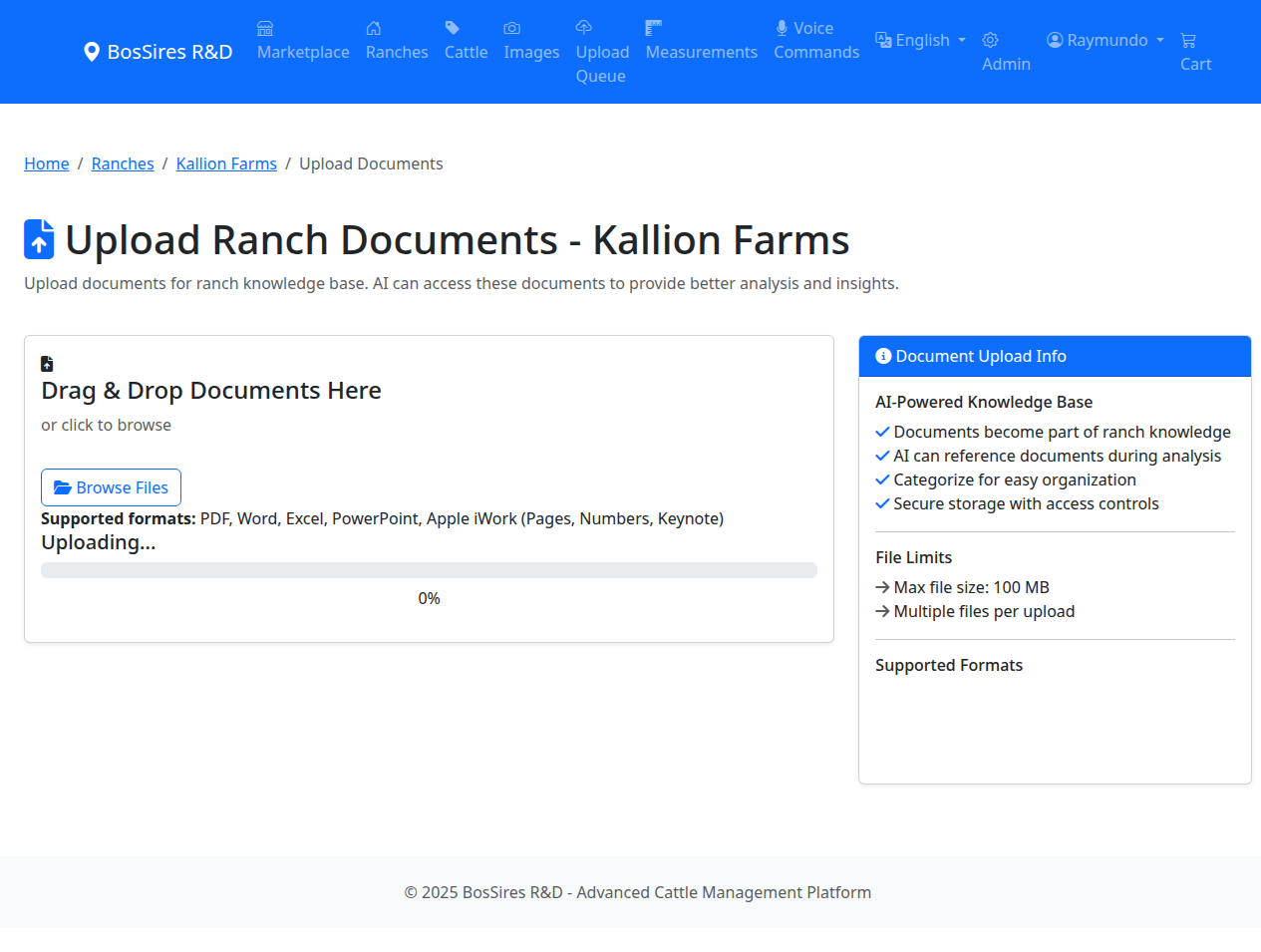
Figure 12: Document upload interface with drag-and-drop functionality and category selection for Kallion Farms
Viewing Documents
- All documents appear on Ranch detail page
- Download any document by clicking "Download" button
- Filter by category
- Sort by date or title
AI Document Scanning
Extract cattle records from documents:
- Upload documents (PDFs, images of records)
- Click "Scan for Cow Records"
- AI analyzes documents and extracts cattle data
- Review extracted information
- Import into your database
Measurements and Analysis
Recording Measurements
Track cattle growth and development:
- Go to cattle detail page
- Navigate to Measurements section
- Click "Add Measurement"
- Enter measurement data:
- Weight - In lbs or kg (based on your preference)
- Height - Shoulder height
- Body Length
- Body Condition Score - 1-9 scale
- Measurement Method - Manual, scale, AI estimate
- Date - When measured
- Add notes (optional)
- Click "Save"
Figure 13: Measurements tracking page showing historical weight data, body scores, and filtering options
Weight Tracking
The system includes advanced weight tracking:
- Growth Charts - Visual weight progression over time
- Milestone Tracking - Automatic milestone detection
- Efficiency Calculations - Average daily gain
- Data Validation - Prevents backdated entries that could corrupt data
AI-Powered Body Analysis
Using GPT-4o vision:
- Upload clear photos of cattle from multiple angles
- Click "AI Analysis"
- Receive detailed analysis:
- Body Composition - Muscle and fat distribution
- Conformation Assessment - Structure and balance
- Bonsma Methodology - Functional efficiency scoring
- Recommendations - Feeding and management suggestions
Body Condition Scoring
Standard 1-9 scale:
- 1-2 - Emaciated
- 3-4 - Thin
- 5-6 - Moderate (ideal for most cattle)
- 7-8 - Fleshy
- 9 - Obese
Veterinary Exam Tracking
The platform includes comprehensive veterinary examination tracking for health management and export compliance.
Recording Veterinary Exams
- Navigate to the cattle detail page
- Click "New Vet Exam" or access from Veterinary Exams menu
- Record examination details:
- Vital Signs - Temperature, heart rate, respiration
- Physical Findings - Body condition, coat, eyes, mouth, hooves
- Disease Testing - Brucellosis, tuberculosis, other required tests
- Export Fitness Assessment - Readiness for transport
- Voice Notes - Record observations hands-free
- Save the examination record
Viewing Exam History
Access Veterinary Exams to:
- View all examinations across your herds
- Filter by cattle, ranch, or date range
- Search by cattle name or registration number
- See pending test results
- Track export eligibility status
Export Health Certificates
For cattle being exported:
- Complete required veterinary examinations
- Verify all disease testing is current
- Generate export health certificate
- System validates USDA formatting requirements
- Track certificate status through APHIS endorsement
Export Compliance Management
The Export Compliance Management System helps ranchers track regulatory requirements for livestock and germplasm exports.
Compliance Dashboard
Access the dashboard at /compliance/ to view:
- Real-time Alerts - Critical compliance issues requiring attention
- Summary Statistics - Active permits, pending certificates
- Expiration Tracking - Upcoming permit and certification expirations
- Animals in Withdrawal - Livestock with treatment withdrawal periods
Import Permit Tracker
Manage foreign import permits:
- Permit Management - Track permits with complete documentation
- Contact Management - Store foreign partner information
- Status Tracking - Monitor application progress
- Expiration Alerts - Receive alerts when permits near expiration
- Document Storage - Upload permit documents and applications
Testing & Treatment Log
Document parasite treatments and track withdrawal periods:
- Record Treatments - Product name, dosage, administration details
- Withdrawal Tracking - Automatic meat and milk withdrawal calculation
- Export Eligibility - Monitor when animals become export-eligible
- Lab Test Results - Track disease testing (brucellosis, tuberculosis, etc.)
- Result Monitoring - Track pending results and their export impact
Regulatory Updates
Stay current with regulatory changes:
- Multi-Source Tracking - USDA/APHIS, state agencies, foreign countries
- Impact Assessment - High, Medium, Low impact levels
- Action Items - Clear indication of required actions and deadlines
Training & Certification Records
Track veterinarian and staff certifications:
- USDA Accreditation - Veterinarian accreditation numbers and expiration
- State Licenses - Veterinary licensing status
- Continuing Education - CE hours tracking
- Staff Training - Ranch staff certifications
- Expiration Alerts - 60-day advance notifications
Ask Theo (AI Assistant)
Ask Theo is an AI-powered assistant available to staff and administrators for natural language data modifications.
What Ask Theo Can Do
- Modify cattle records using natural language requests
- Link parent relationships (dam/sire)
- Merge duplicate cattle records
- Update metadata and field values
- Explain what changes will be made before executing
Using Ask Theo
- Navigate to Ask Theo (staff access required)
- Type your request in natural language, for example:
- "Set the sire of cattle #12345 to Big Jake"
- "Update the breed of Vegetation to Angus"
- "Merge duplicate records for cow Lady Jane"
- Theo analyzes your request and shows a confirmation screen
- Review the proposed changes carefully
- Click "Confirm" to execute or "Cancel" to abort
Safety Features
Ask Theo includes multiple safety guardrails:
- User Confirmation Required - All changes require explicit approval
- Before/After Snapshots - Complete record snapshots stored for rollback
- Audit Logging - Every action is logged with user, timestamp, and details
- Staff-Only Access - Only authorized staff can use this feature
Reviewing Request History
View past Ask Theo requests:
- Status Tracking - Pending, Awaiting Confirmation, Completed, Failed
- Action Logs - See exactly what was changed
- Rollback Capability - Restore previous values if needed
Voice Commands
Using Voice Control
The platform supports voice commands for hands-free operation:
- Navigate to Voice Commands menu
- Click the microphone icon
- Speak your command clearly
- System processes and executes
Example Voice Commands
- "Show me all cattle at Scratch Land ranch"
- "Find cattle with registration number REG-2025-0001"
- "Add weight measurement for cattle Vegitation"
- "Show health status for all bulls"
- "Upload image for cattle number 12345"
Voice Command Features
- Natural Language Processing - Speak naturally
- Multi-Language Support - English and Spanish
- Fallback to Text - Type if voice isn't working
- Command History - Review past commands
Shopping Cart and Checkout
Viewing Your Cart
- Click the Cart icon in the top navigation
- Review items:
- Cattle registration fees
- Marketplace purchases
- See total cost
Checkout Process
- Review cart contents
- Click "Proceed to Checkout"
- Enter payment information via Stripe
- Confirm purchase
- Receive confirmation email
Payment Security
- Stripe Integration - Industry-leading payment security
- SSL Encrypted - All transactions protected
- PCI Compliant - Meets payment card industry standards
Ownership and Transfers
The platform tracks cattle ownership and provides tools for managing ownership transfers.
Viewing Ownership Records
From the cattle detail page:
- Current Owner - Who currently owns the animal
- Ownership History - Complete transfer timeline
- Transfer Dates - When ownership changed
- Previous Owners - Full ownership chain
Recording Ownership Transfers
- Navigate to the cattle detail page
- Click "Transfer Ownership"
- Enter transfer details:
- New Owner - Select from registered users/organizations
- Transfer Date - When ownership transferred
- Transfer Notes - Sale price, contract details, etc.
- Click "Complete Transfer"
Bulk Transfers
For transferring multiple cattle at once:
- Go to Cattle list view
- Select multiple cattle using checkboxes
- Click "Bulk Transfer"
- Select the new owner
- Enter transfer date and notes
- Confirm the bulk transfer
All transfers are logged in the activity system for audit purposes.
Cattle Import (Excel/TSV)
Import large numbers of cattle records from spreadsheet files.
Supported Formats
- Excel (.xlsx, .xls)
- TSV (Tab-separated values)
- CSV (Comma-separated values)
Import Process
- Navigate to Cattle > Import Records
- Download the import template to ensure correct column format
- Fill in your cattle data following the template structure
- Upload your completed file
- The system validates and previews your data:
- Duplicate Detection - Warns about existing records
- Data Validation - Checks required fields
- Parent Matching - Automatically links dam/sire
- Review the preview and resolve any issues
- Click "Import" to process records
Import Features
- Upsert Logic - Updates existing records or creates new ones
- Transactional Processing - All-or-nothing to prevent partial imports
- Automatic Parent Creation - Creates placeholder parents if not found
- Registration Number Normalization - Standardizes registration formats
- Import Reports - Detailed logs of created, updated, and skipped records
Template Columns
Your import file should include:
- Name (required)
- Registration Number
- PHN (Permanent Herd Number)
- Ear Tag Number
- Breed
- Sex
- Date of Birth
- Sire Name/Registration
- Dam Name/Registration
- Ranch Name
- Color
- Notes
Additional columns are supported for advanced imports.
Mobile App (iOS)
BosSires Depth Capture App
Available for iOS devices with LiDAR:
Features
- ARKit Integration - Use iPhone/iPad LiDAR scanner
- Depth Data Capture - High-quality 3D depth maps
- Real-Time Sync - Automatic upload to cloud
- GPS Integration - Location-tagged captures
- Offline Mode - Capture in the field, sync later
Using the App
- Download from App Store
- Login with your account credentials
- Grant Permissions - Camera, location, storage
- Scan Cattle:
- Position cattle in frame
- Tap "Capture" button
- Walk around for multiple angles
- Data uploads automatically
- View Results - 3D models appear in web dashboard
Supported Devices
- iPhone 12 Pro and newer
- iPad Pro (2020 and newer)
- Any iOS device with LiDAR sensor
Tips and Best Practices
Photography Tips
For best AI analysis results:
- Good Lighting - Natural daylight is best
- Clear Background - Minimize distractions
- Multiple Angles - Front, side, rear, and 3/4 views
- Full Body Shots - Show entire animal
- Standing Position - Cattle should be standing square
- Distance - 10-15 feet away for full body
- High Resolution - Use highest camera quality
Data Entry Best Practices
- Consistent Naming - Use clear, consistent cattle names
- Complete Records - Fill in as much information as possible
- Regular Updates - Keep measurements current
- Photo Documentation - Upload images regularly
- Backup Important Documents - Upload to document management
Measurement System
The platform automatically adjusts based on your country:
- United States - Imperial (lbs, inches, °F)
- Canada, Australia - Metric (kg, cm, °C)
- Paraguay - Metric
You can override this in your profile settings.
Performance Optimization
- Image Compression - System automatically optimizes large images
- Batch Operations - Use bulk upload for multiple files
- Regular Cleanup - Archive old records periodically
- Browser Cache - Clear browser cache if experiencing slowness
Security Recommendations
- Strong Passwords - Use complex, unique passwords
- Regular Logout - Log out when finished on shared computers
- Permission Management - Only grant access to trusted users
- Document Security - Mark sensitive documents as private
Internationalization
Language Support
Switch between:
- English
- Spanish (Español)
Change language using the language selector in the top navigation.
Country-Specific Features
The platform adapts to your location:
- United States - Imperial measurements, USD currency
- Canada - Metric measurements, CAD currency
- Australia - Metric measurements, AUD currency
- Paraguay - Metric measurements, PYG currency
Automatic Unit Conversion
When viewing data from different regions:
- Weights convert between lbs and kg
- Heights convert between inches and cm
- The system displays in your preferred units
Support and Help
Getting Help
If you need assistance:
- User Manual - This document
- In-App Help - Click the help icon
- Email Support - Contact your administrator
- Training Videos - Coming soon
System Requirements
- Modern Web Browser - Chrome, Firefox, Safari, Edge
- Internet Connection - Stable broadband recommended
- Screen Resolution - 1024x768 minimum
- JavaScript Enabled - Required for full functionality
Browser Recommendations
For best experience:
- Google Chrome - Recommended
- Safari - For iOS and macOS users
- Firefox - Fully supported
- Microsoft Edge - Fully supported
Frequently Asked Questions
General Questions
Q: How do I reset my password?
A: Click "Forgot Password" on the login page and follow the instructions.
Q: Can I manage multiple ranches?
A: Yes! You can add and manage multiple ranch operations from one account.
Q: Is my data backed up?
A: Yes, all data is backed up regularly to cloud storage.
Q: Can multiple users access the same ranch?
A: Yes, ranch administrators can grant access to other users.
Cattle Management
Q: What's the difference between PHN and Registration Number?
A: PHN is a permanent herd number for tracking. Registration number is the official breed association number.
Q: How do I track lineage?
A: Enter dam (mother) and sire (father) information when adding or editing cattle.
Q: Can I delete cattle records?
A: Cattle are typically soft-deleted (marked inactive) to preserve historical data.
Images and Analysis
Q: What image formats are supported?
A: JPG, JPEG, PNG, HEIC, HEIF for photos. MP4, MOV, MPEG for videos.
Q: How many images do I need for 3D modeling?
A: Minimum 5-10 images from different angles. More is better.
Q: What is the Bonsma methodology?
A: A functional efficiency scoring system that evaluates cattle based on body proportions and structural soundness.
Registration and Fees
Q: How much does cattle registration cost?
A: $10.00 per animal for registration with unique registration numbers.
Q: Are registration numbers permanent?
A: Yes, once assigned, registration numbers never change.
Q: Can I register cattle in bulk?
A: Yes! Use the multi-select feature to register many cattle at once.
ABCA and Fertility
Q: What is the Verified Fertility Badge?
A: A credential awarded to cattle with documented proof of fertility, including a cow/calf pair photo taken within one week of calving.
Q: What calving interval is considered excellent?
A: 365 days or less is considered "Excellence" tier. 366-395 days is "Good," and over 395 days is "Needs Improvement."
Q: How do I get a Zietsman Approved designation?
A: Cattle must demonstrate high fertility, low-input management compatibility, and efficiency. Contact your registry administrator for evaluation.
Judging and Certificates
Q: Who can conduct cattle judgings?
A: Authorized evaluators with login access can conduct judgings. Contact your administrator to become a judge.
Q: How do I generate an ABCA Registry Certificate?
A: Navigate to the cattle detail page and click "Generate Certificate." The PDF will include pedigree, owner information, and any earned badges.
Compliance and Exports
Q: What is the Export Compliance system?
A: A comprehensive system for tracking permits, veterinary certifications, treatment withdrawal periods, and regulatory requirements for livestock exports.
Q: How are withdrawal periods calculated?
A: When you record a treatment, enter the withdrawal days. The system automatically calculates when the animal becomes export-eligible.
Ask Theo (AI Assistant)
Q: What can Ask Theo do?
A: Ask Theo can modify cattle records, link parent relationships, update metadata, and more using natural language requests. All changes require your confirmation.
Q: Is Ask Theo available to all users?
A: No, Ask Theo is available only to staff and administrators with appropriate permissions.
Technical
Q: Why use sequential uploads instead of batch?
A: Sequential uploads (one file at a time) prevent timeout errors and ensure reliable processing of large files.
Q: What happens to my GPS data?
A: GPS coordinates from images are used to automatically link photos to pastures. Your exact location is never shared publicly.
Q: Is the mobile app required?
A: No, the mobile app is optional. All features are available through the web browser.
Q: Can I import cattle from a spreadsheet?
A: Yes! The platform supports Excel, TSV, and CSV imports. Download the template, fill in your data, and upload for bulk import.
Glossary
ABCA - All Breeds Cattlemen's Association
APHIS - USDA Animal and Plant Health Inspection Service
ARKit - Apple's augmented reality framework for 3D scanning
Ask Theo - AI-powered assistant for natural language data modifications
Body Condition Score (BCS) - Numerical rating of cattle fatness (1-9 scale)
Bonsma Methodology - Functional efficiency evaluation system
Calving Ease Score - Rating of difficulty during calving (1-5 scale)
Calving Interval - Days between calvings; 365 days or less indicates high fertility
Dam - Mother of a cattle
Ear Tag - Physical identification tag on cattle's ear
Endorsement Badge - Verified credential for specific achievements (fertility, structure, etc.)
EXIF Data - Metadata embedded in image files
Export Health Certificate - Official documentation for livestock exports
Fertility Tier - Classification based on calving interval (Excellence, Good, Needs Improvement)
GeoJSON - Format for encoding geographic data
GPS - Global Positioning System for location tracking
HEIC - High Efficiency Image Coding format used by Apple devices
KML - Keyhole Markup Language for geographic data
LiDAR - Light Detection and Ranging for 3D scanning
PHN - Permanent Herd Number
PLY File - 3D point cloud file format
Sire - Father of a cattle
VEHCS - Veterinary Export Health Certificate System (USDA)
Verified Fertility Badge - ABCA credential for proven breeding performance
Withdrawal Period - Time after treatment before animal is eligible for export/slaughter
Zietsman Approved - Designation for high-fertility, low-input cattle
Version History
Version 2.0 - February 2026
- Added ABCA Fertility Tracking system with calving intervals and verified fertility badges
- Added ABCA Public Registry and Performance Dashboard
- Added official ABCA Registry Certificate PDF generation
- Added comprehensive Cattle Judging System with voice transcription
- Added Ask Theo AI Assistant for natural language data modifications
- Added Veterinary Exam Tracking with export fitness assessment
- Added Export Compliance Management System
- Added Ownership and Transfer tracking with bulk transfers
- Added Excel/TSV import for bulk cattle records
- Added Cow/Calf Pair Photo System for fertility verification
- Added automatic HEIC to WebP/JPEG conversion
- Updated multi-domain architecture (bossires.online, cattleregistry.online, abca.online)
- Enhanced activity logging and audit trails
- Updated platform branding to All Breeds Cattlemen's Association
Version 1.0 - November 2025
- Initial user manual release
- Complete feature documentation
- Step-by-step guides
- FAQ section
Contact Information
For technical support, feature requests, or questions about your account, please contact your system administrator.
Platform: All Breeds Cattlemen's Association (ABCA)
Domains: bossires.online | cattleregistry.online | abca.online
Documentation Version: 2.0
Last Updated: February 2026
Thank you for using the ABCA Cattle Management Platform. We're committed to helping you manage your cattle operation with transparency, data integrity, and a focus on "Fertility. Function. Honesty."